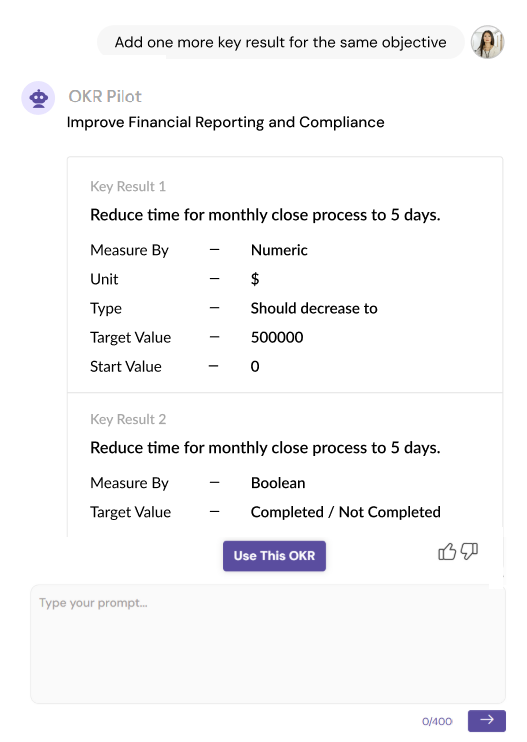
Writing effective OKRs is now faster and easier. OKR Pilot is your AI-powered assistant designed to generate structured, measurable Objectives and Key Results based on simple prompts. This feature helps you save time and ensures your goals follow best practices from the start.
Accessing OKR Pilot
You can launch the OKR Pilot assistant from three primary locations within the platform:
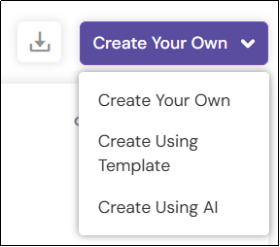
- From the Objective Page: Click the dropdown arrow on the Create button and select Generate Using AI.
- From the Create Objective Page: If you are already manually creating an objective, look for the Generate with AI dropdown button at the top of the page.
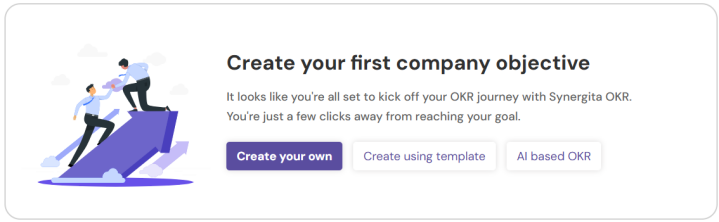
- From an Empty Dashboard: If you have no existing objectives, look for the Generate Using AI button displayed in the center of your screen.
Note: This feature is available for OKR Growth and Trial users. If the button appears greyed out, it indicates your current plan does not include AI-assisted creation.
Generating Your OKRs
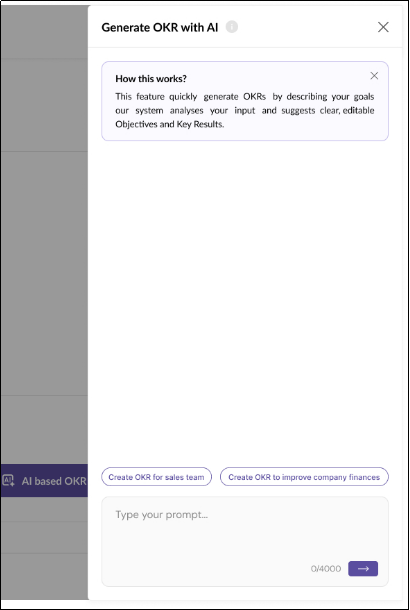
Once the AI side panel opens on the right, follow these steps to build your OKRs:
- Provide a Prompt: Type a description of your goal in the search bar (e.g., "Create an OKR to improve customer retention"). Your prompt must be at least 20 characters long.
- Use Example Cards: You can click on the suggested cards, such as "Create an OKR for sales Team," to quickly populate the prompt box with a template you can edit.
- Set the Number of Key Results: By default, the AI generates 3 Key Results. You can specify a different number in your prompt (up to a maximum of 10).
- Trigger Generation: Click the Right Arrow button. While the AI works, you will see a "Generating..." status.
Reviewing and Using the Output
The AI will present an Objective and a list of Key Results with pre-configured metrics (Measure By, Unit, Type, and Target Values).
- Use This OKR: If the results meet your needs, click the Use This OKR button. This will automatically populate the main Create Objective page with the AI-generated data.
- Refining Results: If you want a different result, simply edit your prompt with more specific details and click the generate button again.
- Finalizing: After the AI panel closes, you must manually select the Owner and Date/Period fields, as these are not generated by the AI. You can also edit any of the AI-generated text or values before clicking Save.
- Provide Feedback: Use the Thumbs Up or Thumbs Down icons to rate the quality of the generated OKR. This helps improve the system for future requests.