
Users can generate reports using the Export icon. Objectives and various fields associated with them can be exported as a report whenever a user requires it. This article gives a step-by-step tutorial on how to export objectives.
Step 1: Navigate to Objectives Page
- Log in to your Synergita OKR account.
- Locate the left navigation pane.
- From this panel, choose the type of objectives you want to export (Company Objectives, Team Objectives, or Individual Objectives).
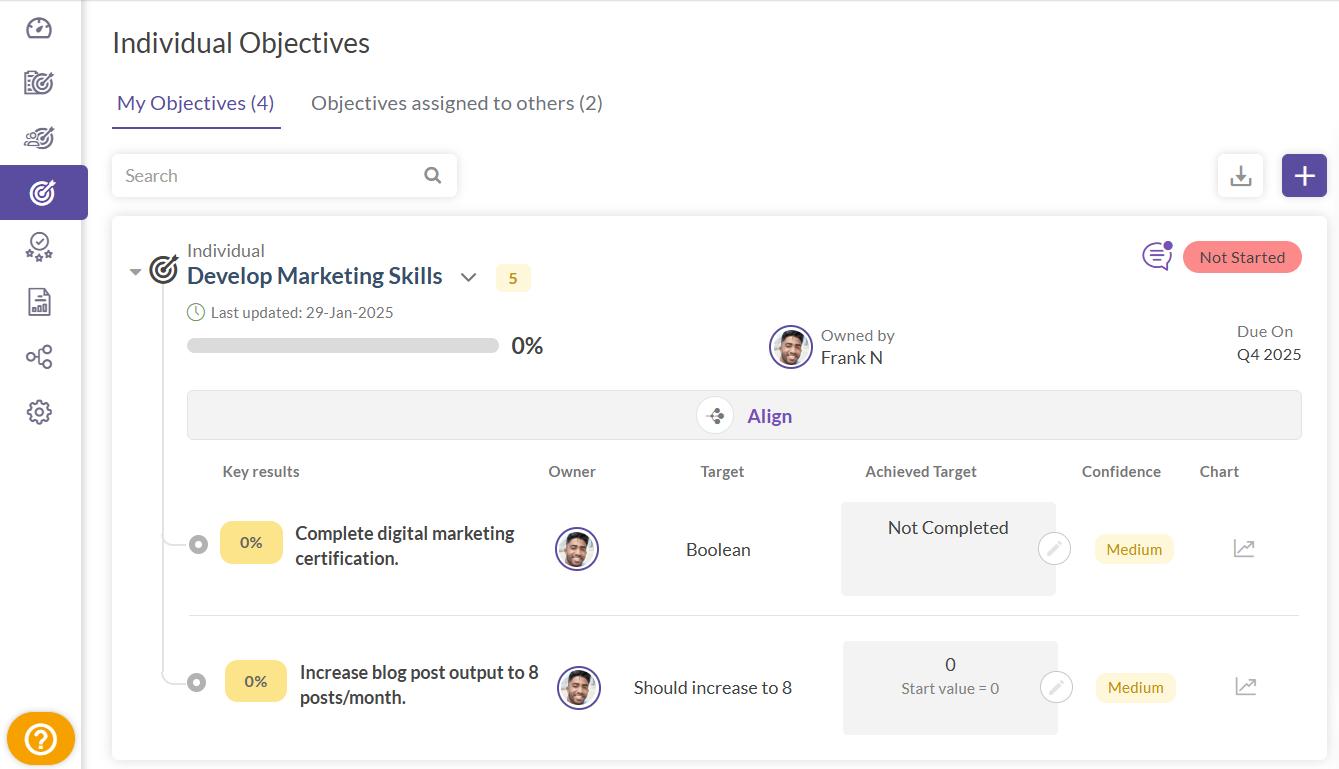
Step 2: Locate the Export Icon
- Once you are on the desired objectives page, find the export icon located at the top-right corner of the page above the objectives.
- This feature is available on all three objective pages (company, team, and individual objectives).
- Hover over the icon; you will see a tooltip that says "Export".
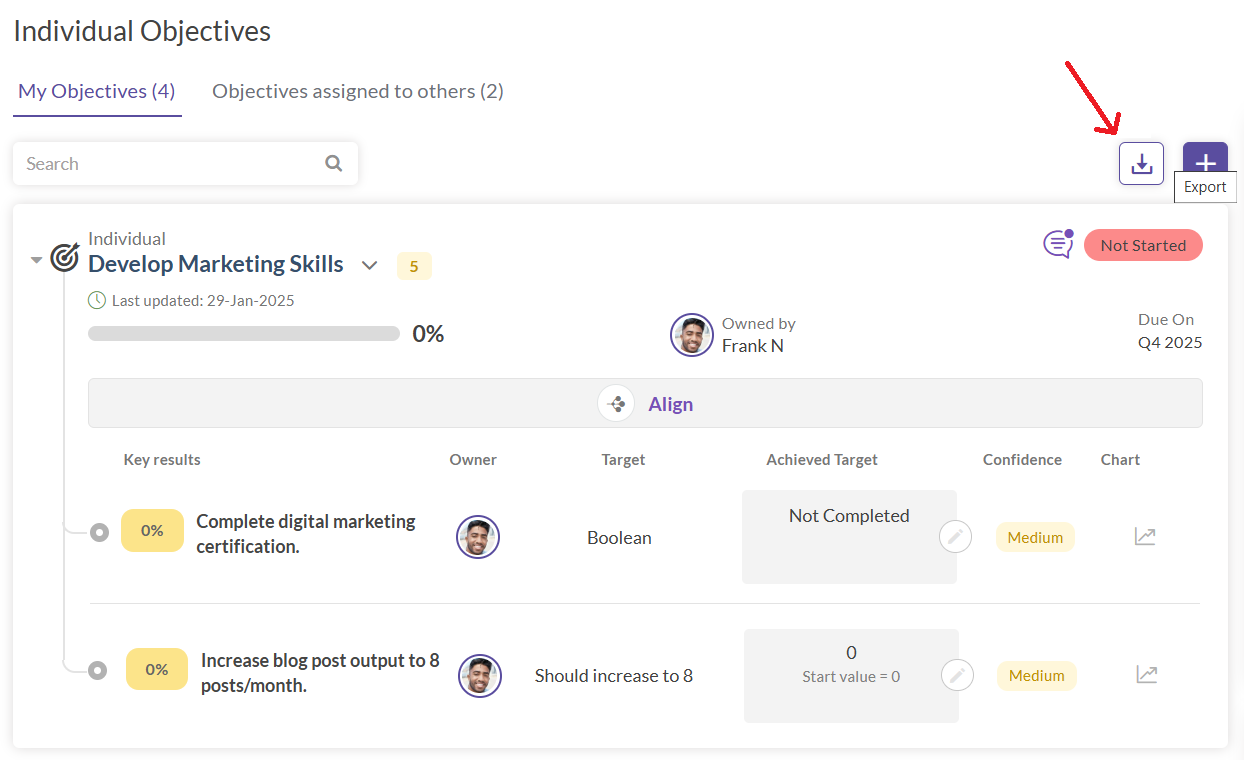
Step 3: Initiate the Export
- Click on the export icon.
- A message will appear, notifying you that a report will be generated and sent to your registered email address.

- It might take a few minutes for the report to be sent to the mail once generated.
- The link that is sent through email will be valid for 5 days.
Step 4: Objective Filtering (Optional)
- The filter function can be used to select only the objectives that are needed for the report. When a filter is applied, only the filtered objectives will be exported.
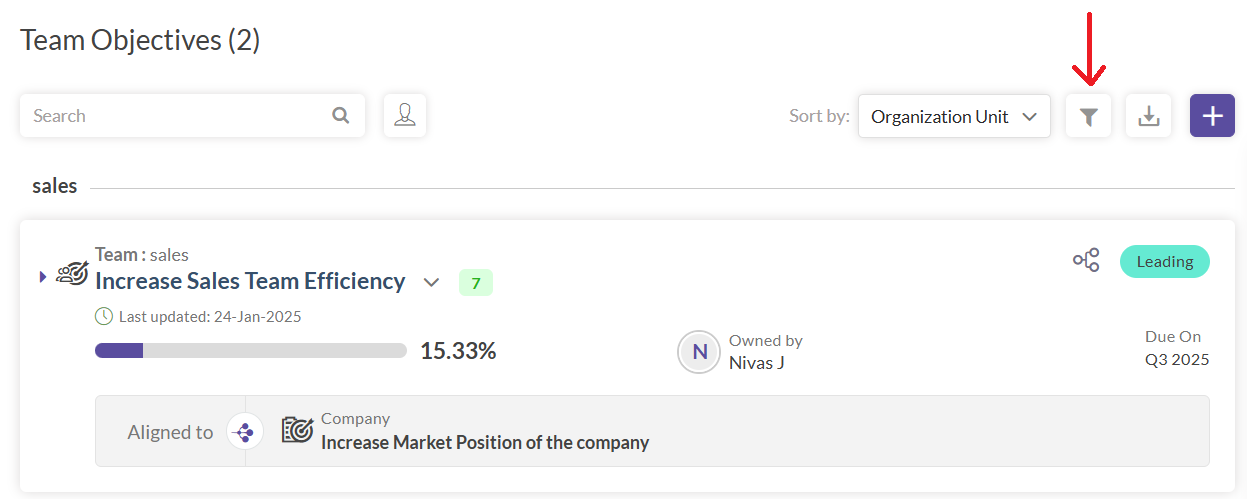
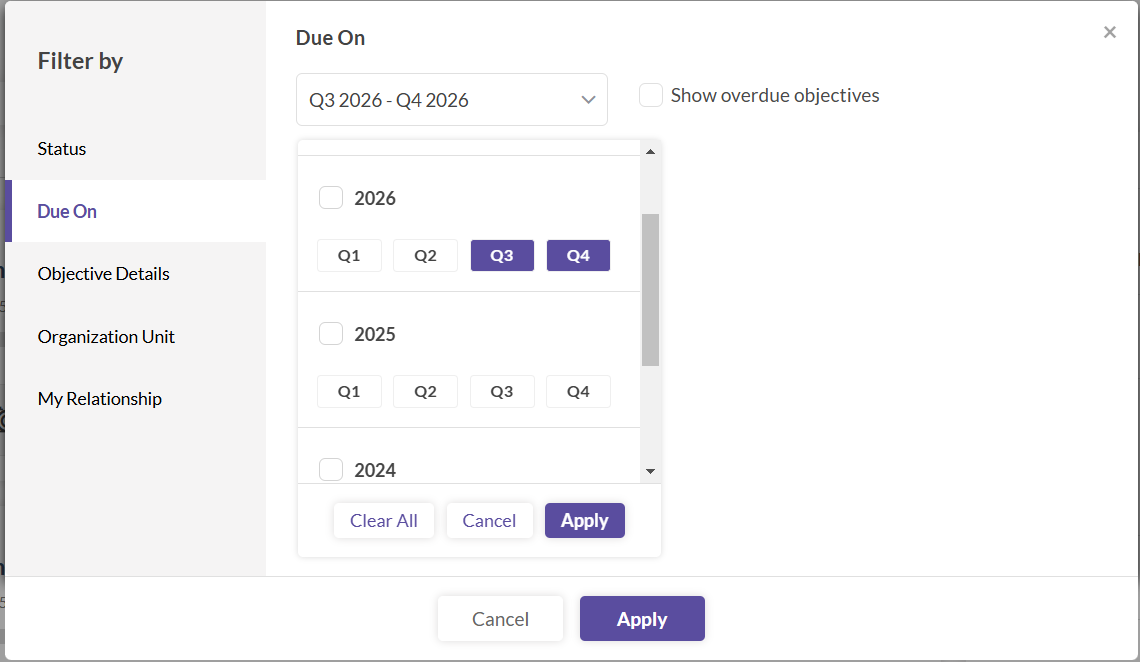
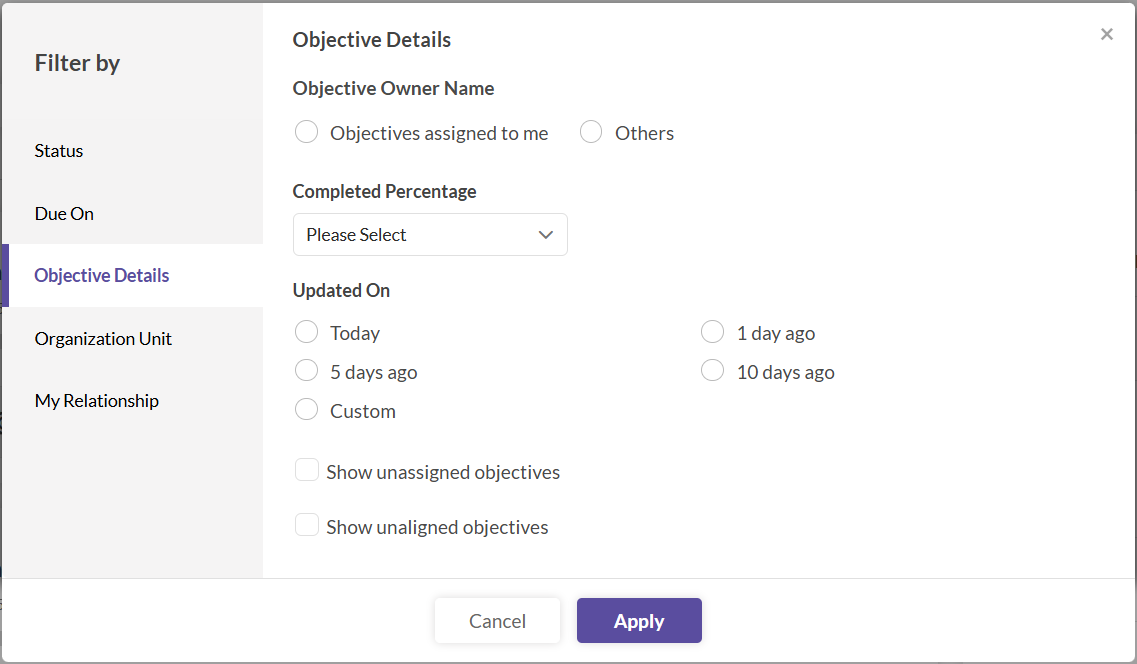
The filter button is adjacent to the export icon at the top-right corner of the page. Clicking on the filter button opens the filter popup. Filters can be applied based on:
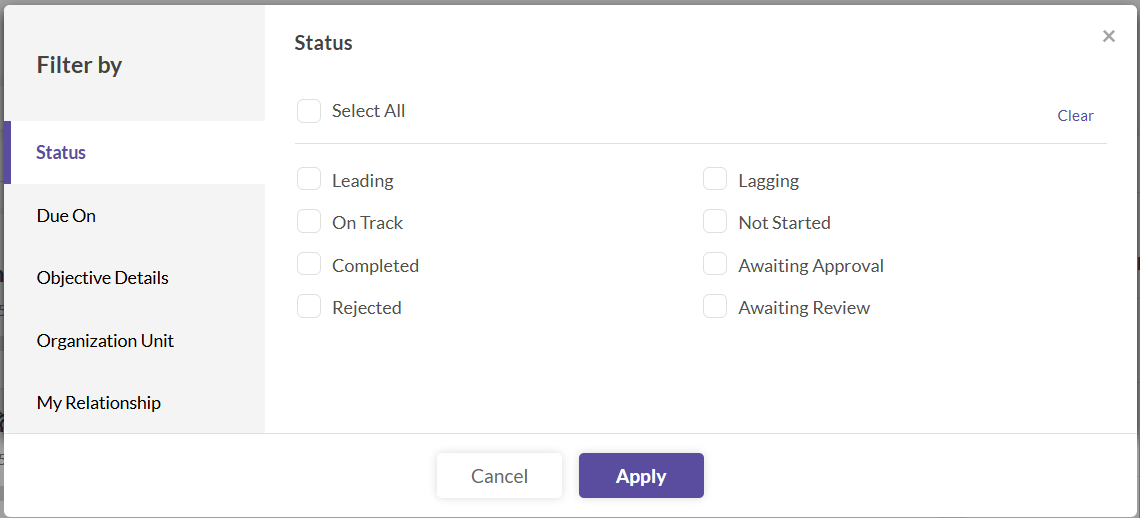
- Status: Choose from options like Leading, Lagging, On Track, Not Started, Completed, Awaiting Approval, or Rejected.
- Due Date: Select the due date from the standard date picker. In case of custom dates configuration, then use conditional operators (=, >=, <=) or select 'Between Dates' for a specific range.
- Objective Details: Filter by Objective Owner Name, Completion Percentage, or Updated on date.
- Organizational Unit: Select the organizational unit, which is user-defined.
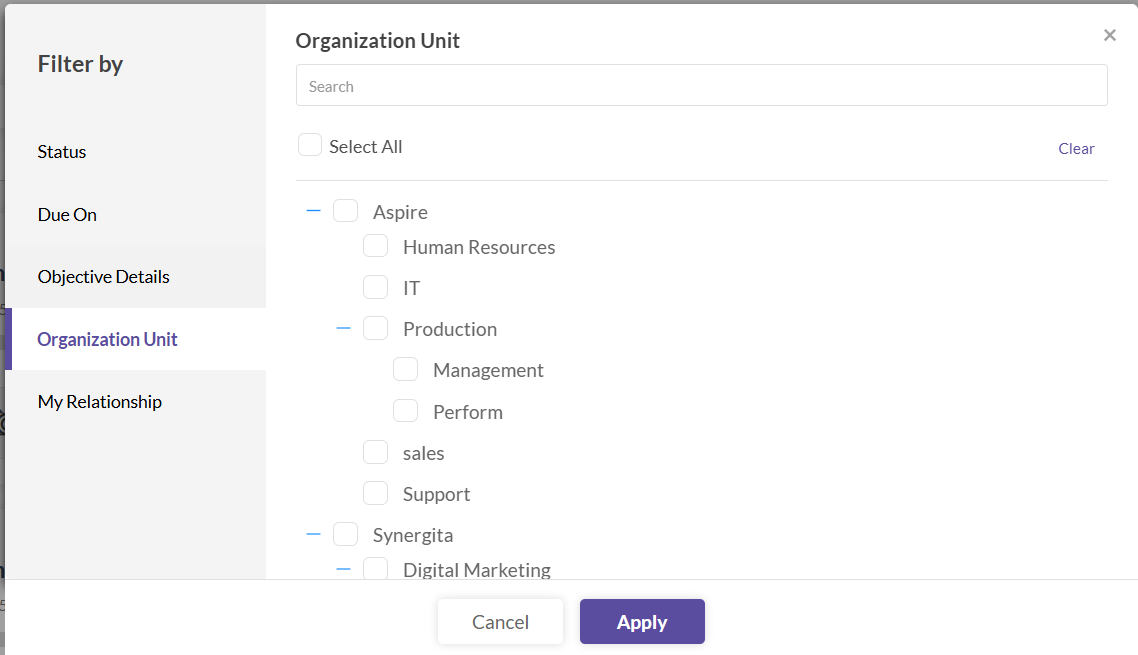
After selecting the necessary filters, click on apply; the filters will be applied before exporting.
Step 5: Check Your Email for the Report
- You can find a link to download the report in your email.
- Click the link, and the report will be downloaded to your system.
Important Notes
- Only the objectives corresponding to the page you exported from will be included in the report. For example, if you initiated the export from the Team Objectives page, only team objectives will be exported.
- The exported spreadsheet report contains many detailed fields. The available fields are:
| Objective Name | Measure by | Target | Objective Target Type |
| Objective Start Value | Start Date | Due Date | Tags |
| Achieved | Progress percentage | Owner Name | Initiatives |
| Aligned Objective Name | Objective Status | Contributor percentage | Key results |
| Key results target | Key results Target Type | Key results Start Value | Weightage |
| Key results achieved | Key results progress percentage | ||