
Admin-designated users play a crucial role in approving or rejecting team and individual OKRs in Synergita.
When an OKR is created, the organization can choose to enable the approval process. This allows the OKR to be sent to specific individuals or designations for review before it is officially submitted and used. Here's a step-by-step guide on how to approve and reject OKRs.
Navigation
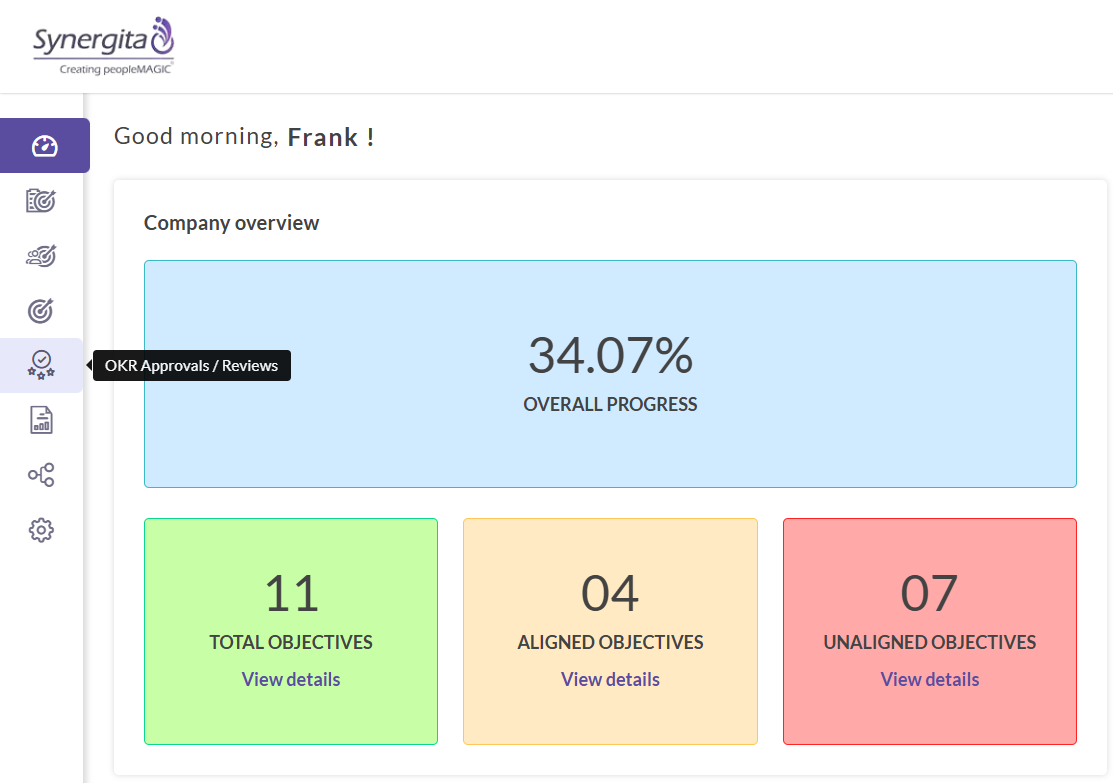
- Click on the OKR Approvals / Reviews page on the left navigation pane. This will lead you to the OKR Approvals / Reviews section.
- There are two tabs, one each for individual objectives and Team objectives. The respective tab can be selected, if you need to review individual or Team objectives respectively.
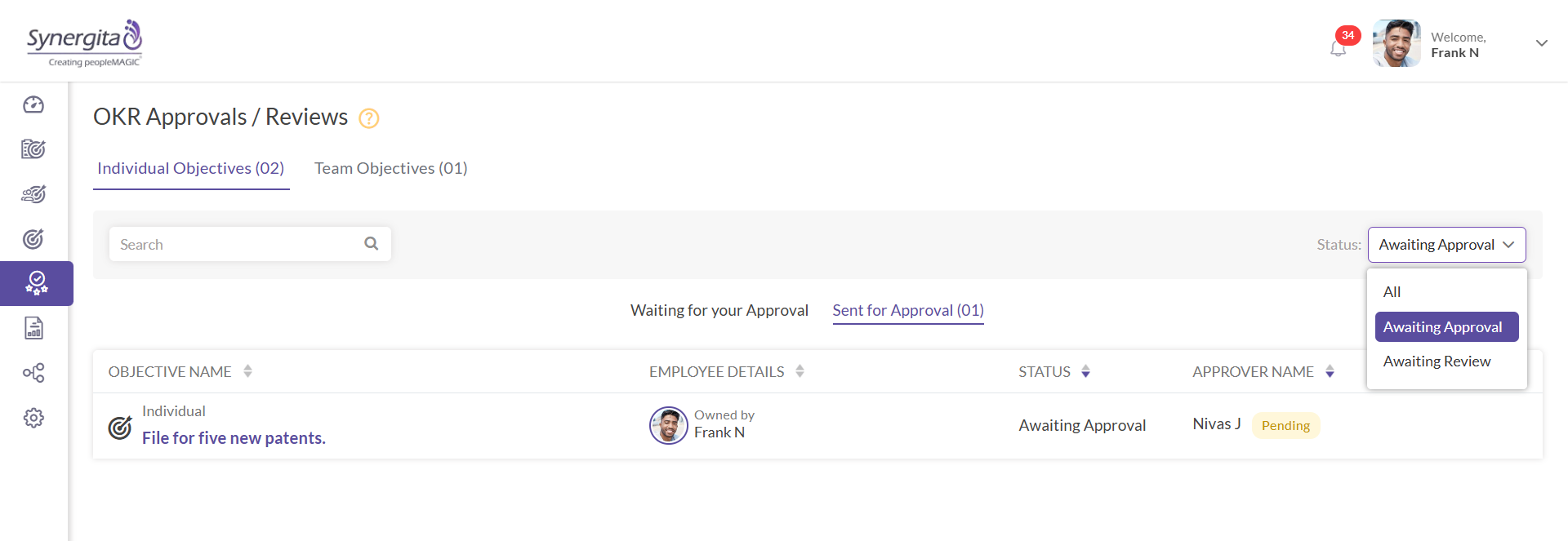
- Each of these tabs are subdivided into two more tabs:
- Waiting for Approval / Review - Shows objectives that need your attention for approval or review.
- Sent for your Approval / Review - Shows objectives that you have sent for approval or review, along with the name of the approver or reviewer.
- The objectives can also be filtered by using the search box functionality on the top left of the page.
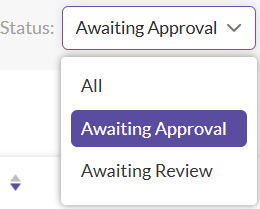
- If only the objectives awaiting approval need to be viewed, the status filter can be used to search and select the option.
Approve or Reject the OKR
- Select the OKR that needs approval or rejection, and click on the "Approve/Reject" link next to it.
- On the OKR approval/rejection page, you can add comments to provide feedback or reasons for your decision.
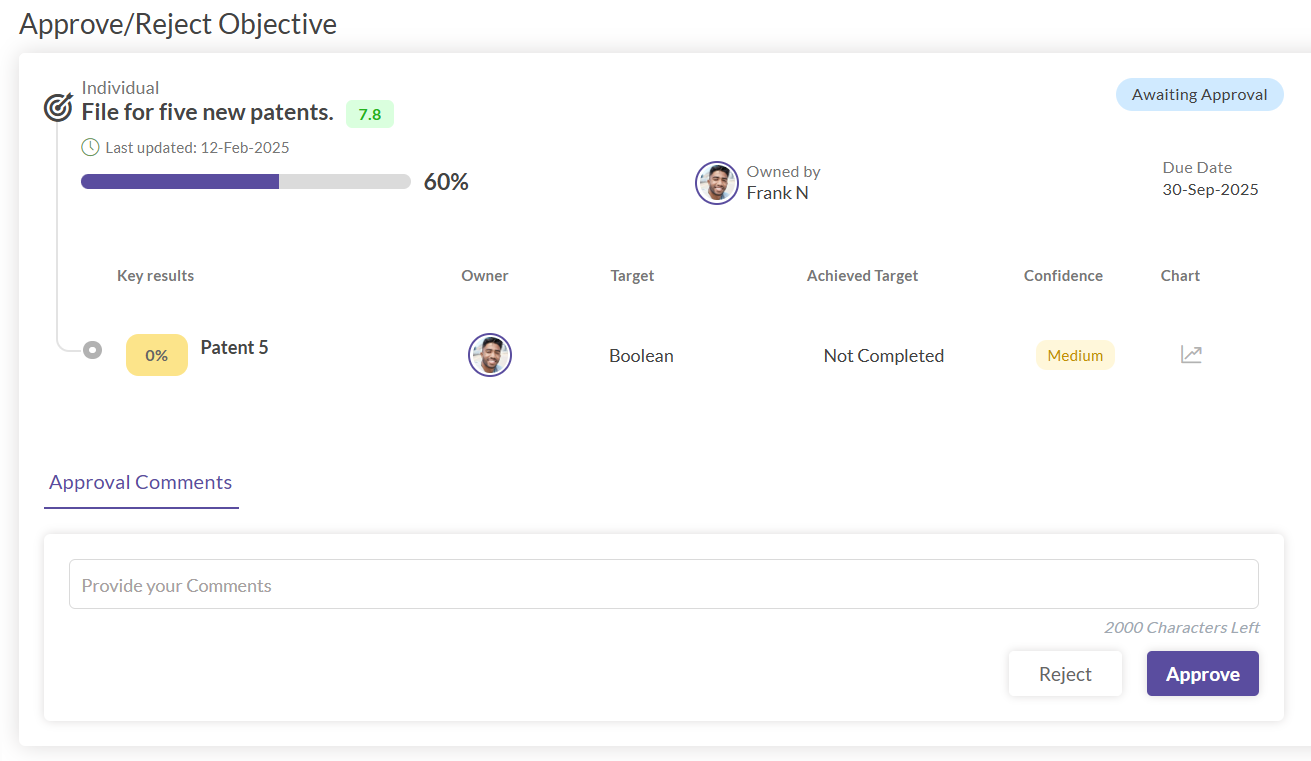
- After reviewing the OKR and adding comments, you have two options:
- Approve: If the OKR aligns with the organization's goals and meets the required criteria, click on the "Approve" button to approve the OKR.
- Reject: If the OKR is not relevant, has no value, or does not meet the necessary standards, click on the "Reject" button.
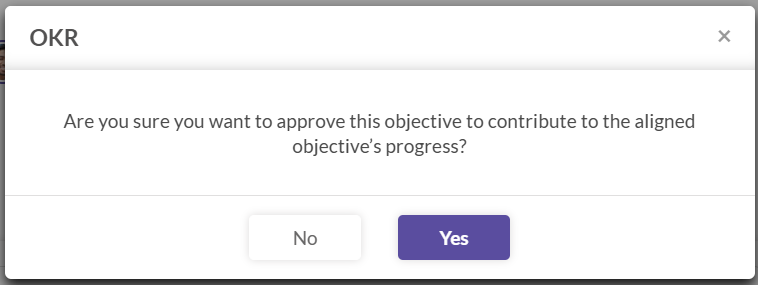
- A confirmation dialogue will appear after clicking "Approve" or "Reject." Click Yes to proceed with your decision.
Once you have approved the OKR, it will be marked as approved in the system. In the case of rejection, the system will note the OKR as rejected, and the reasons for rejection will be recorded. Approving and rejecting OKRs in Synergita ensures that the objectives are in line with the organization's goals and that all efforts are focused on achieving meaningful results.