
Individual OKRs guide employees to align their efforts with the company's vision, contribute to team objectives, and grow professionally. Synergita OKR helps individual goal-setting for enhanced performance and personal development. Here's how to create individual objectives:
Step 1: Access Individual Objectives
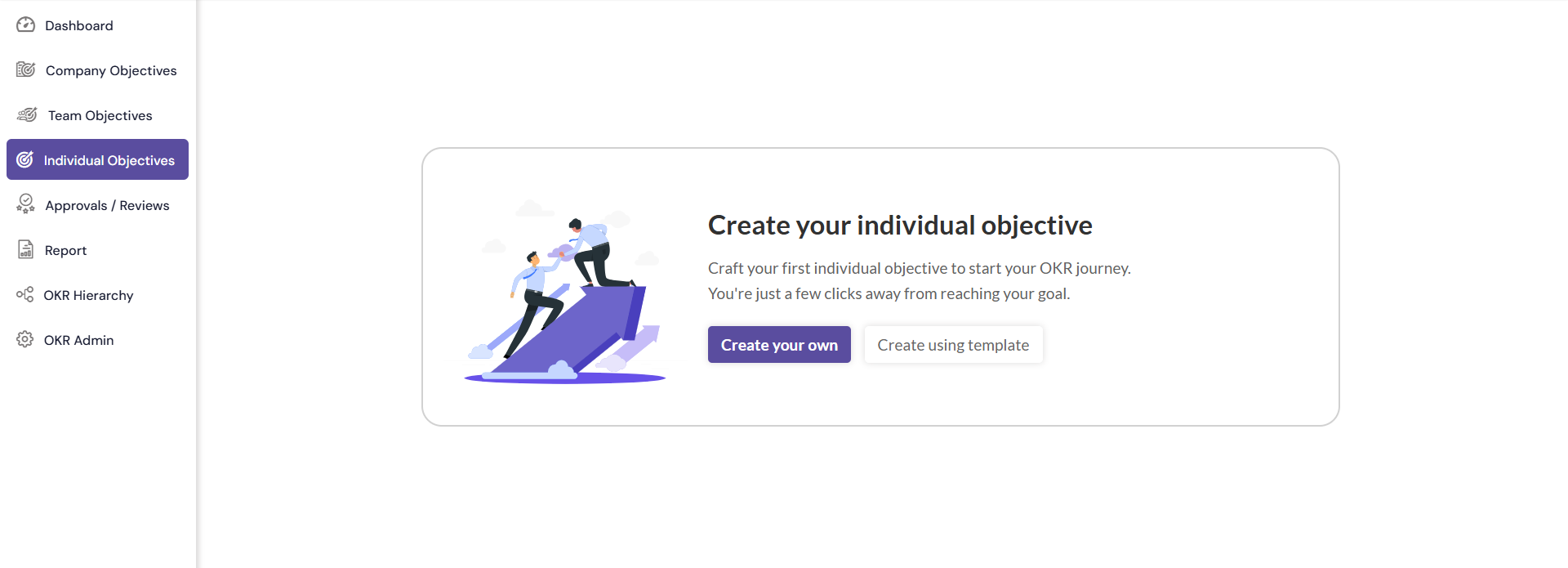
- Click on Individual Objectives in the left navigation menu to access the Individual Objectives creation page.
Step 2: Create a New Individual OKR
- Click the Create your own button to initiate the creation of a new team OKR.
- If there are existing team OKRs created, then the page will show the list of OKRs. To create the OKR, click on the + button on the top right of the page.

- OKRs can also be created using existing templates, by clicking on the button "Create using templates".
- To Learn how to use OKR Templates, click here.
Step 3: Fill in the Required Information
- The Individual Objective creation page presents various fields that require information. Ensure to provide the following details:
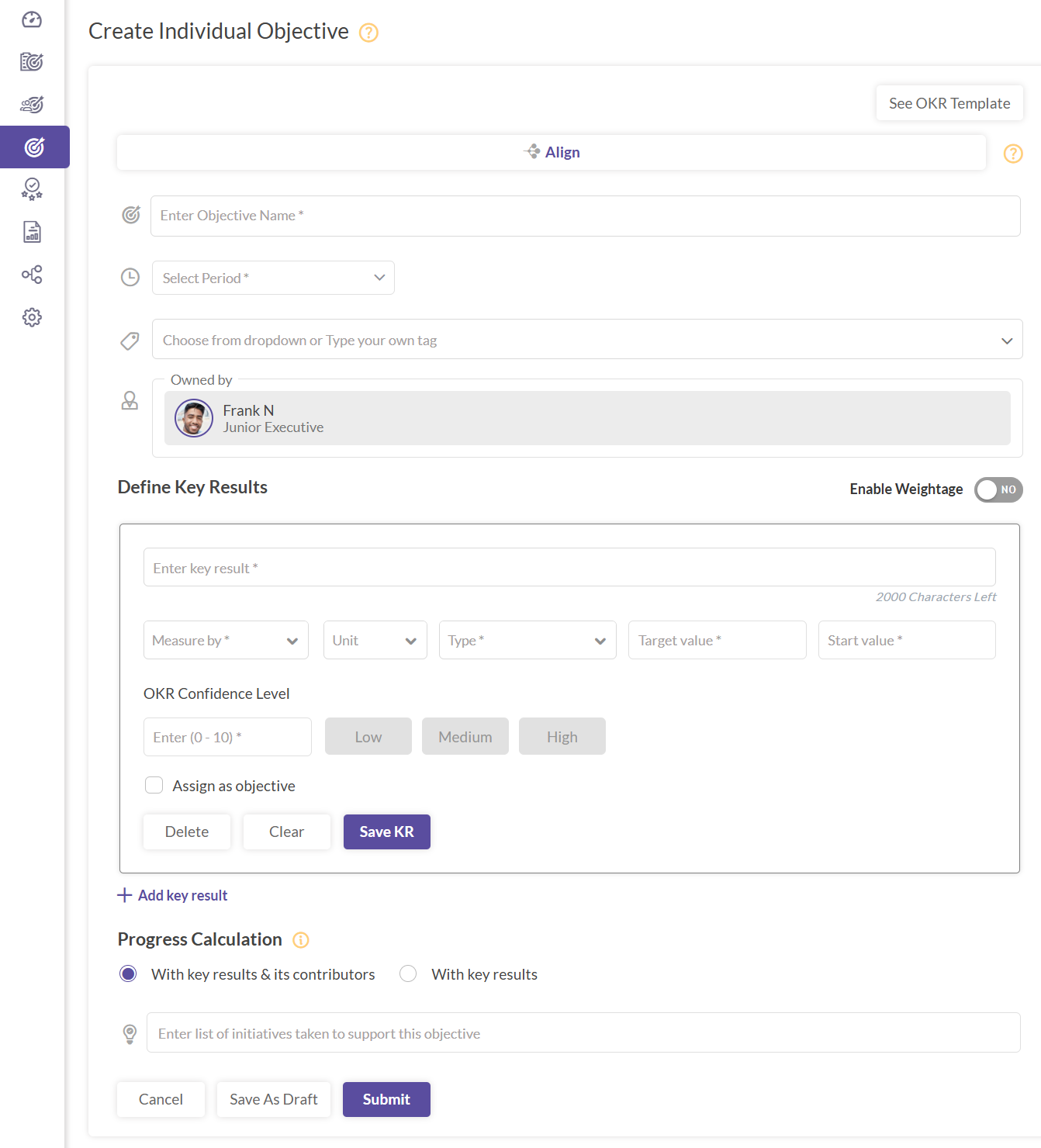
- Objective Name: Type in the name of your objective.
- Period: Select the start date and due date for monitoring the OKR's progress or accomplishing the set objective using the date picker. In case Standard date picker is selected from the configuration page, then the start and end quarter should be selected from the date picker.
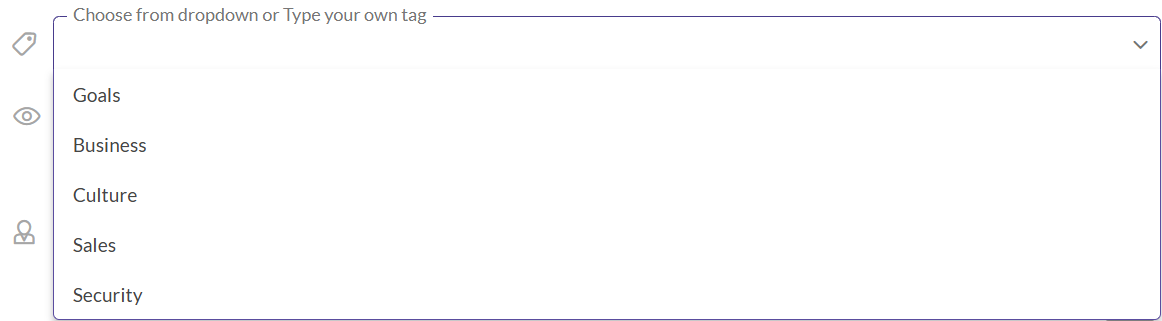
- Tag: Use this function to classify OKRs and facilitate easy reference. Click on the Tags field, choose from the options, and add custom tags by typing and pressing enter. You can add a maximum of 3 tags for an objective.
- Owned By: This field is pre-populated with the creator's name by default. If you wish to create an individual OKR for other users, click here.
- Define Key Result: Key results are specific, time-bound, realistic, and measurable outcomes that drive the individuals for achieving their set objectives. Click on the Add Key results button to add more than one key result.
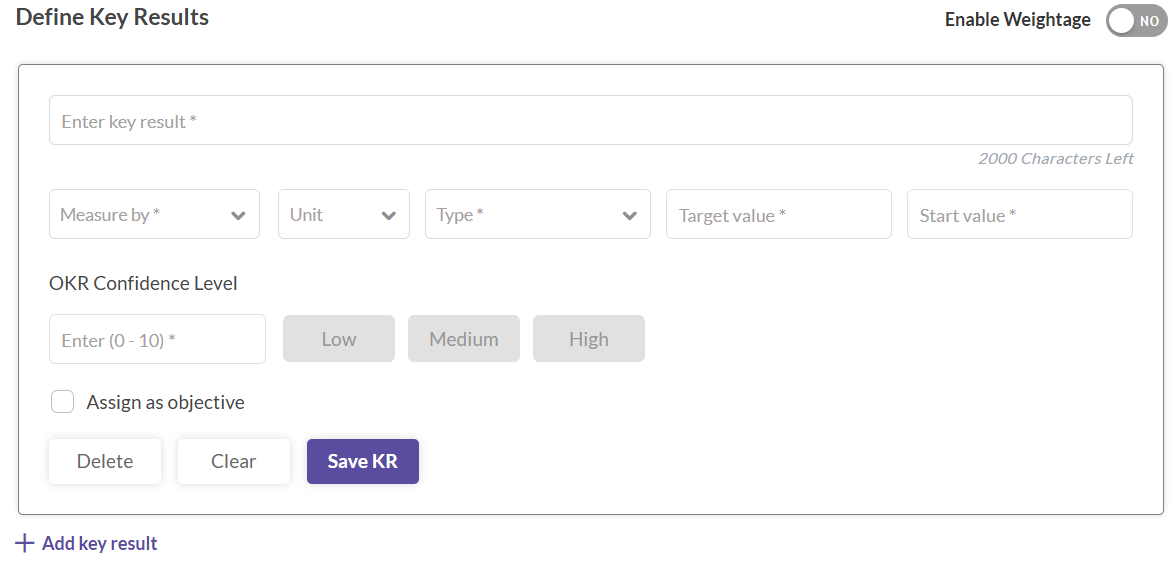
- Enter Key Result: Enter key results in texts that help achieve the main objective (max 2000 characters). E.g: Increase lead count to 100.
- Measure By:Determines how you'll measure the Key Result, choosing from "Number", "Text", or "Boolean".
- Number: This is a number-based target.
- Boolean: Completed/Not-completed.
- Text: Open-ended text field.
- Unit: Select a unit of measurement. Options include "#", "%", "$", "R", "₹", "£". If these don't suit, choose "Custom". This opens a popup where you can input a unique symbol or text. You can then determine its placement relative to numbers, using the "Show before number" or "Show after number" radio buttons.